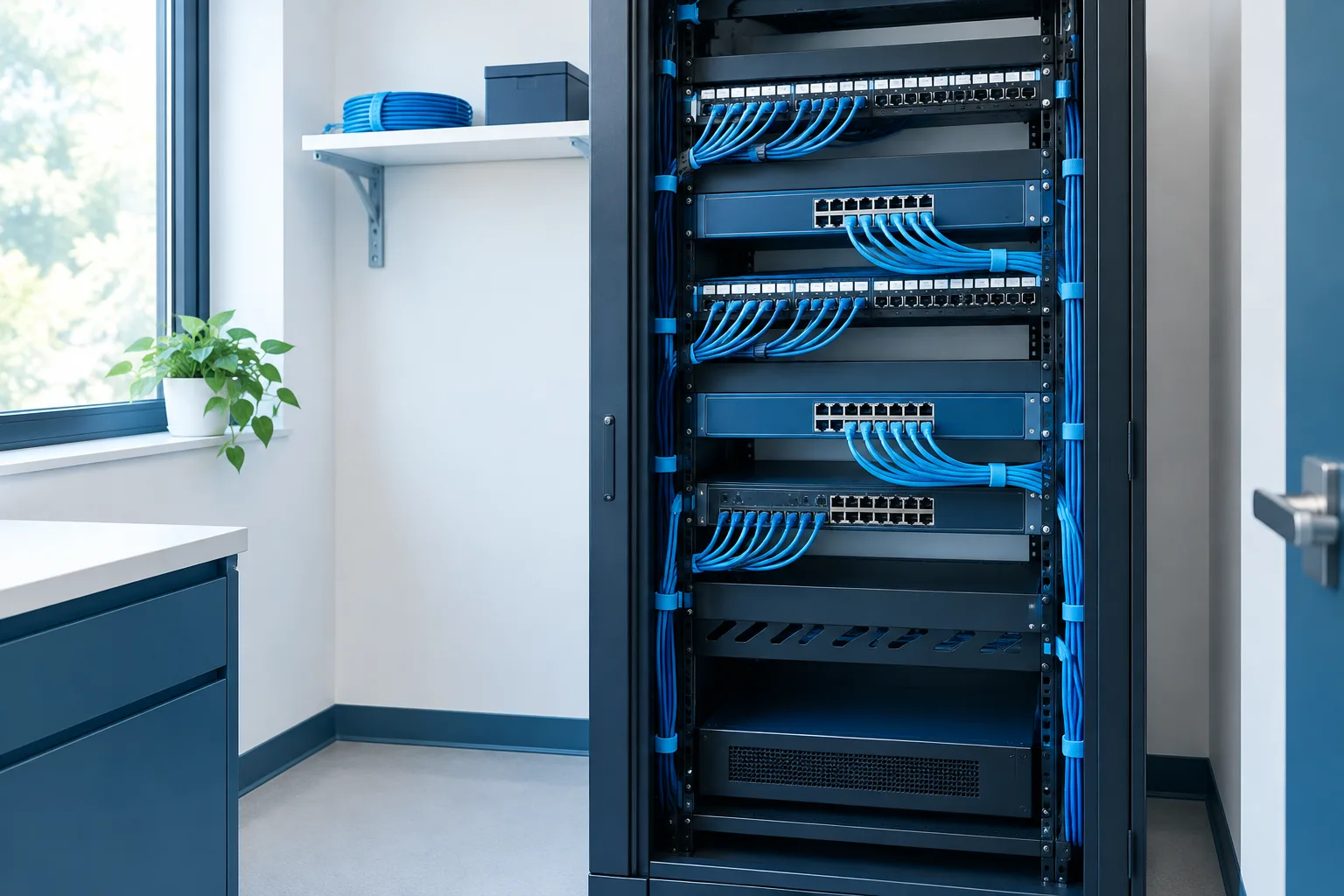
When calls sound choppy, the problem may not be the phone service itself. Network congestion, unstable Wi-Fi, packet loss, or an inconsistent quality-of-service policy can all interfere with voice traffic. The right network settings for business VoIP call quality depend on the calling platform and how your network is designed, so treat provider guidance as the starting point rather than copying a generic configuration.
This checklist can help you identify what to review, what to compare, and when to involve your IT provider. It is useful whether employees use desk phones, computer apps, or a mix of both.
Start by narrowing down the problem
Before changing settings, look for a pattern. Note which users are affected, whether the issue occurs at particular times, and whether calls are choppy for everyone or only for people in a certain part of the office. Check whether the affected calls use desk phones, Wi-Fi, wired computers, or a VPN.
Compare a call from a wired device with one from Wi-Fi if you can do so safely without disrupting work. If the wired call is clear while the wireless one is not, investigate the wireless connection and access point conditions. If both are affected at the same time, look more closely at shared network traffic, the internet connection, and the voice service.
Call-quality data can help turn a vague complaint into a useful troubleshooting clue. Review available reports for jitter, packet loss, and delay around the time of affected calls. Microsoft’s guidance identifies audio jitter below 30 ms as a good threshold in its real-time analytics guidance (Microsoft Teams real-time telemetry guidance). It identifies audio packet loss below 5% as a good threshold in that same guidance. These are Teams-specific reference points, not universal guarantees for every VoIP platform.
Give voice traffic an appropriate path
Quality of service, or QoS, can help a managed network give real-time voice traffic priority when the network is busy. It does not create extra bandwidth or fix a poor connection. It helps manage contention when other traffic, such as large file transfers or backups, competes with calls.
For QoS to work as intended, the relevant network devices need compatible classification and priority rules along the traffic path. Depending on the setup, that can include switches, routers, wireless access points, and internet-edge equipment. A rule on one device alone may not be enough if traffic is classified differently or loses its priority farther along the path.
Do not guess at DSCP markings, ports, or traffic rules. Confirm the requirements for your specific phone system or calling app, then check that the network policy matches them. Microsoft explains how to implement QoS for Teams, but another provider may have different instructions. Review the vendor’s documentation and coordinate changes across the managed network.
Check bandwidth, but do not stop there
Available bandwidth matters, especially when many people are on calls while other applications are busy. However, a speed test showing a strong connection does not rule out congestion, packet loss, jitter, or a weak wireless signal. Look at what else is using the network when the call problems occur, including cloud backups, large downloads, video meetings, and file syncing.
Bandwidth recommendations are specific to the application. Microsoft lists 58 Kbps up and down as recommended bandwidth for Teams audio, and 76 Kbps up and down for best performance; these are Teams-specific figures, not a universal VoIP guarantee (Microsoft Teams network preparation guidance). Check your own provider’s requirements and consider the network’s overall demand, not just one call in isolation.
Use Ethernet when it is practical, and tune Wi-Fi carefully
For a stationary desk phone or workstation, Ethernet is a useful baseline because it removes wireless signal strength and radio interference from the equation. It is not the only way to have reliable calls, though. Wi-Fi performance depends on coverage, interference, access-point capacity, and configuration.
For wireless calling, check whether the device has a stable signal where calls take place and whether too many devices are sharing the same access point. Review access-point placement and capacity, and use the Wi-Fi band and settings recommended for your equipment and calling application. Where supported and configured appropriately, WMM can help handle time-sensitive wireless traffic. Avoid changing wireless settings blindly: a setting that helps one environment may not fit another.
If the call issue follows a particular room or area, compare performance in another location before making broad network changes. That can help distinguish a coverage or interference problem from a wider internet or application issue.
Review VPN and firewall routing with care
A VPN can add another network path for voice traffic. Depending on how it is routed and managed, that path may contribute to delay or congestion. Do not simply disable a VPN or open firewall access as a troubleshooting shortcut. Security and routing changes should be reviewed with your IT provider and checked against the calling platform’s documented requirements.
Ask whether the voice application’s approved media traffic is being routed through a VPN, whether the firewall is handling it as expected, and whether any inspection or filtering is affecting call quality. If a direct route for approved voice media is being considered, make sure the approach is consistent with your organization’s security requirements and the vendor’s guidance.
A practical troubleshooting sequence
- Record the symptoms. Note affected users, locations, devices, and when the calls become choppy.
- Compare connection types. Test a wired call against a Wi-Fi call when possible, keeping other conditions similar.
- Review call data. Check the platform’s available quality reports for jitter, packet loss, and delay around the affected time.
- Look for congestion. Identify other network activity that may coincide with the problem.
- Verify provider requirements. Confirm approved QoS, firewall, VPN, and bandwidth guidance for your specific service.
- Apply coordinated changes. Have the appropriate network settings reviewed across the devices that carry the voice traffic, then test calls again.
Keep a record of what changed and whether it helped. Changing several unrelated settings at once can make it harder to tell which condition was responsible. If the issue continues, call-quality reports and a clear record of symptoms give your IT provider a more useful starting point.
Make call quality part of network management
Reliable business calls depend on more than a phone setting. QoS policies, wireless coverage, network capacity, VPN routing, and ongoing monitoring all play a role. For more on maintaining business network performance, see Zevonix’s guide to network management for local businesses. If the symptoms point to a broader connectivity interruption, this article on business VoIP outages covers a related continuity concern.
Zevonix provides managed IT services as a complete outsourced IT department, including network management, 24/7/365 network and endpoint monitoring, and remote and onsite support. If choppy calls are recurring, contact Zevonix to discuss a practical review of your business network and voice traffic.